FAQs / Help
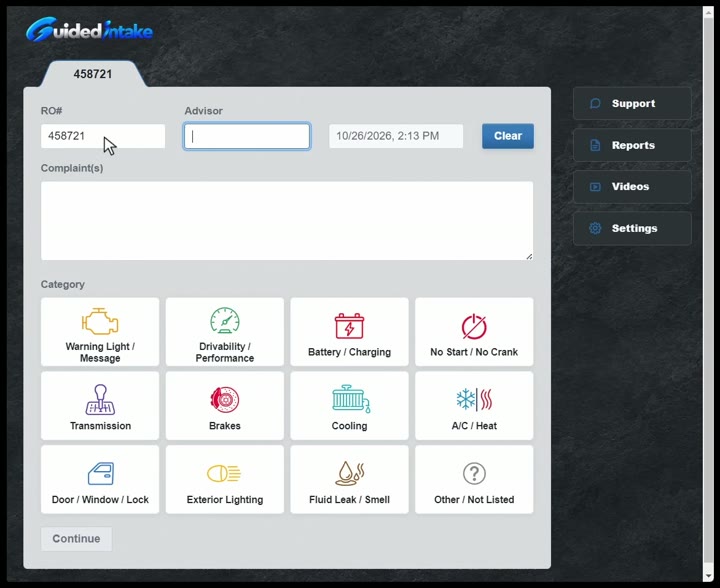 01 Start an RO
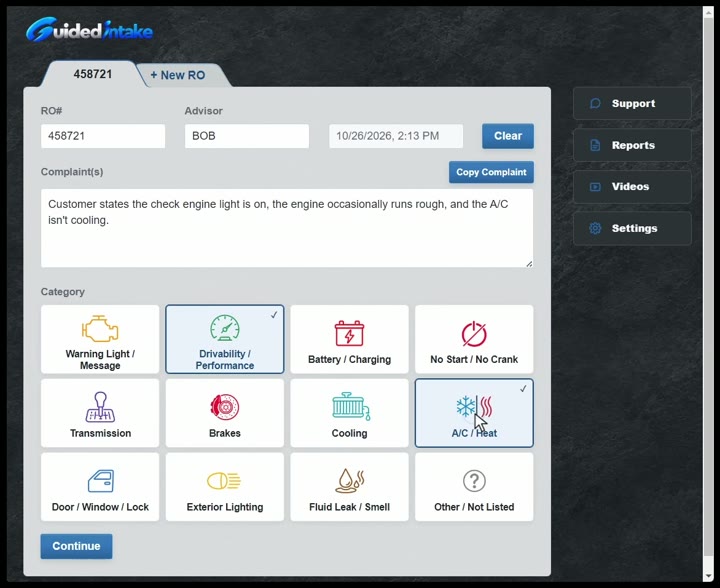 02 Select Categories
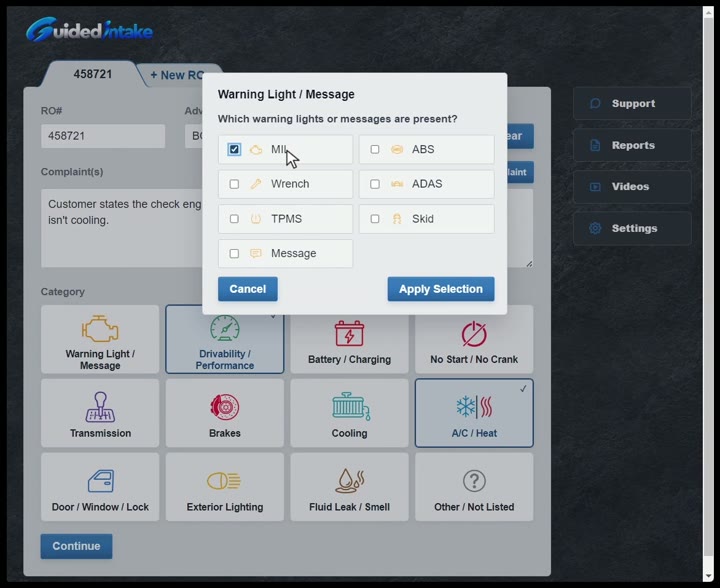 03 Warning Lights
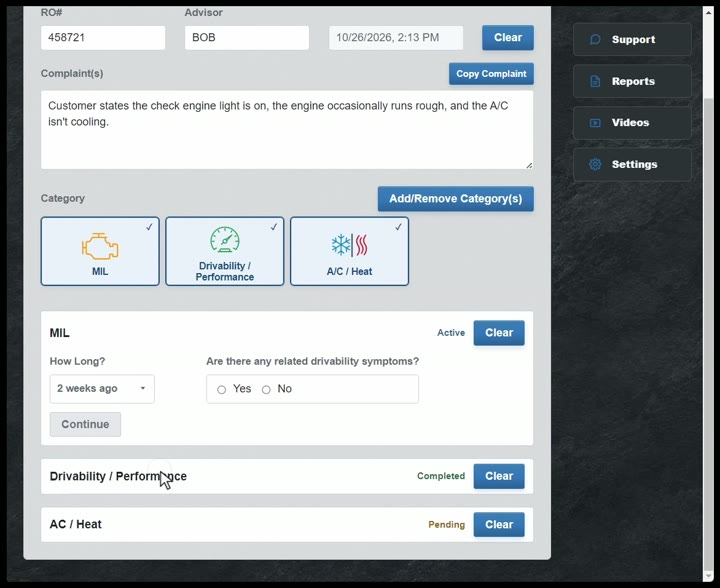 04 Answer Questions
 05 Correct an Answer
 06 Change Categories
 07 Record Previous Work
 Coming soon08 Choose Report Style
 Coming soon09 Generate a Report
Questions
No matching questions. Try a different word or .
How do I start a repair order?
Enter the RO# first, add the advisor’s initials, and record the customer’s complaint in their own words. Then select the categories that match the concern.
Can I select more than one category?
Yes. Select each category that applies to the customer’s concern, then continue through the questions for those categories.
How do I select a warning light or message?
Choose Warning Light / Message, select the warning or warnings reported by the customer, and choose Apply Selection. Continue with the questions for each selected warning.
How do I complete the diagnostic questions?
Work through each selected category with the customer. Record what they know about the concern and add relevant notes. The questions shown depend on the category and the answers you select.
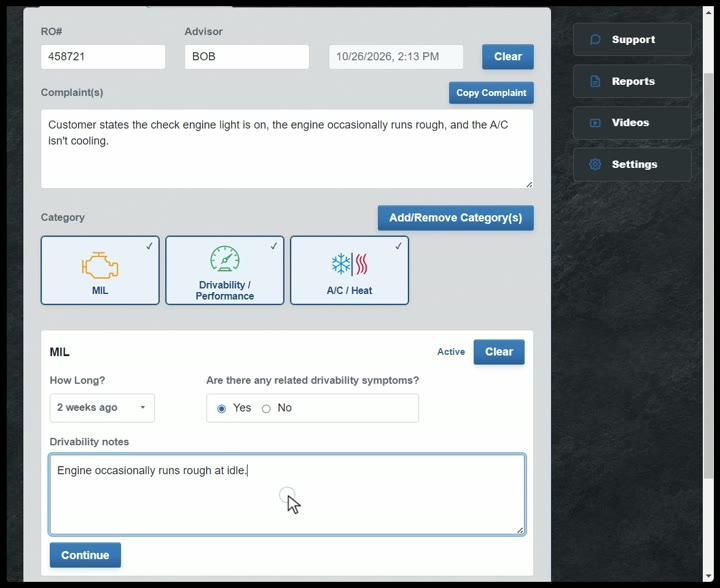
How do I correct an answer?
Return to the question and change the answer. Review any follow-up questions that appear so the intake reflects the corrected information.
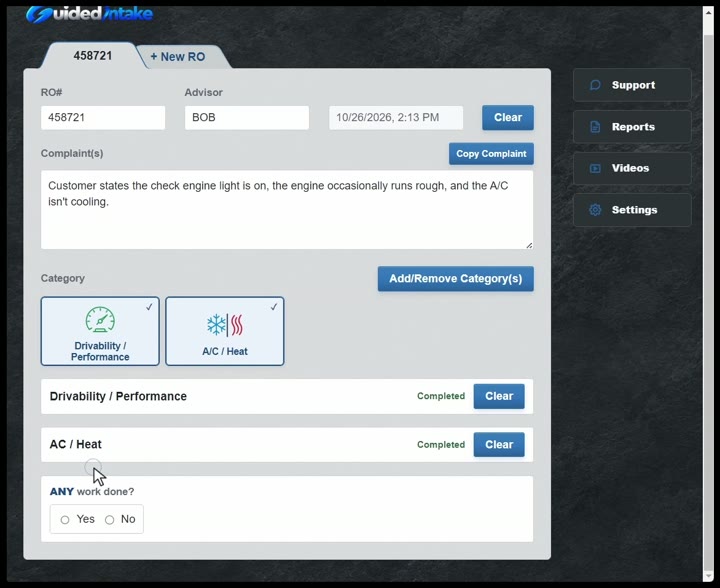
How do I add or remove categories after starting?
Choose Add/Remove Category(s), adjust the selections, and choose Apply Changes. Removing a category retains its answers in that RO so they can return if you select it again. Use a category’s Clear control only when you intend to erase its answers.
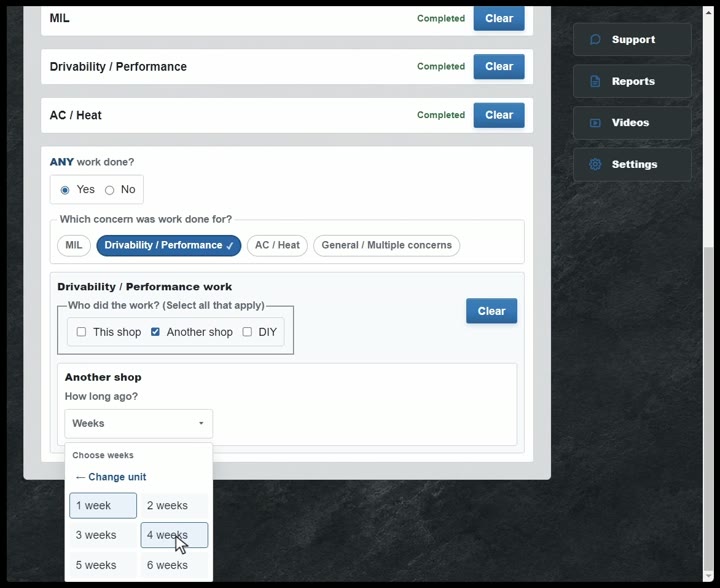
How do I record work already done?
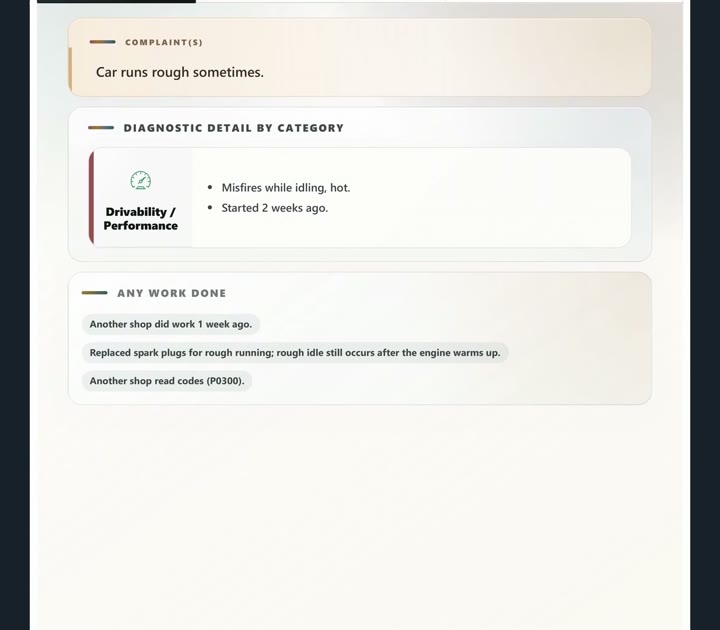
Answer Yes to ANY work done? and record the work, who performed it, and the concern it relates to. Include relevant previous repairs or DIY work reported by the customer.
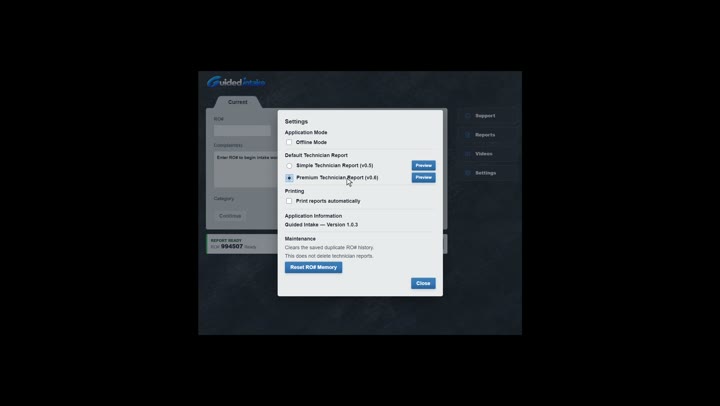
How do I choose the technician report style?
Open Settings and find Default Technician Report. Use Preview to compare Simple and Premium, then select the format you want. Print reports automatically uses Simple and makes Premium unavailable while that setting is on. Offline Mode also uses Simple.
How do I generate and use the technician report?
Complete the intake, then choose Generate Report. Use the report controls to open the Reports folder or drag the generated PDF to the destination your shop uses. Give the technician the generated report alongside the repair order.
Where do I find a generated report?
Choose Reports in the app’s utility area, or Open Reports Folder after generating a report. Use your shop’s normal process to print or share the PDF.
How do I start an intake without a live RO?
Open Settings and turn on Offline Mode. Enter the customer and vehicle information, including the customer’s Last Name, and complete the intake. Check the identifying information carefully before generating the report. Offline reports use the Simple format.
What do I do when a live RO becomes available?
Generate the Offline report first. When the live RO is ready, turn off Offline Mode in Settings and select that customer's Offline intake tab. Choose Attach Report to RO..., verify the customer and vehicle, and enter the Live RO Number. Choose Generate New Report, then use the replacement live-RO report.
What if the app says my access needs attention?
Read the message shown in the app and use its Try Again or Get Help controls as appropriate. Check your account for subscription or terminal information. If the problem continues, contact Support and include the exact message shown.
Where do I manage my subscription or billing?
Sign in to your Guided Intake account. Under Account & Billing, choose Manage billing or cancel subscription. Contact Support if you need help with an account or payment issue.
Can one subscription cover multiple shop locations?
A subscription covers one physical shop location and includes up to five terminals at that location. Separate locations require separate subscriptions; the included terminals cannot be divided between locations.
How do I contact Support?
Choose Support in Guided Intake or use Contact Support below. Describe what you were doing, what you expected, and what happened. Include any error message. In the app, enter or verify the RO# when requested. Saved information for that RO is included when available, as explained in the notice before you send. Support sent from an Offline intake without a live RO contains your message without RO information.
Does Guided Intake diagnose the vehicle?
Guided Intake helps the advisor collect and organize the customer’s diagnostic concern for the technician. The technician still performs the diagnosis.